Before you start
- An iPhone with LumaMe. You can also use an iPad as the lighting device.
- Use a second device if you want one screen dedicated to lighting while another camera captures the shot.
- The basic screen light is free. Gradients, unlimited saved presets and some recording options require Pro.
Open the light and choose a preset
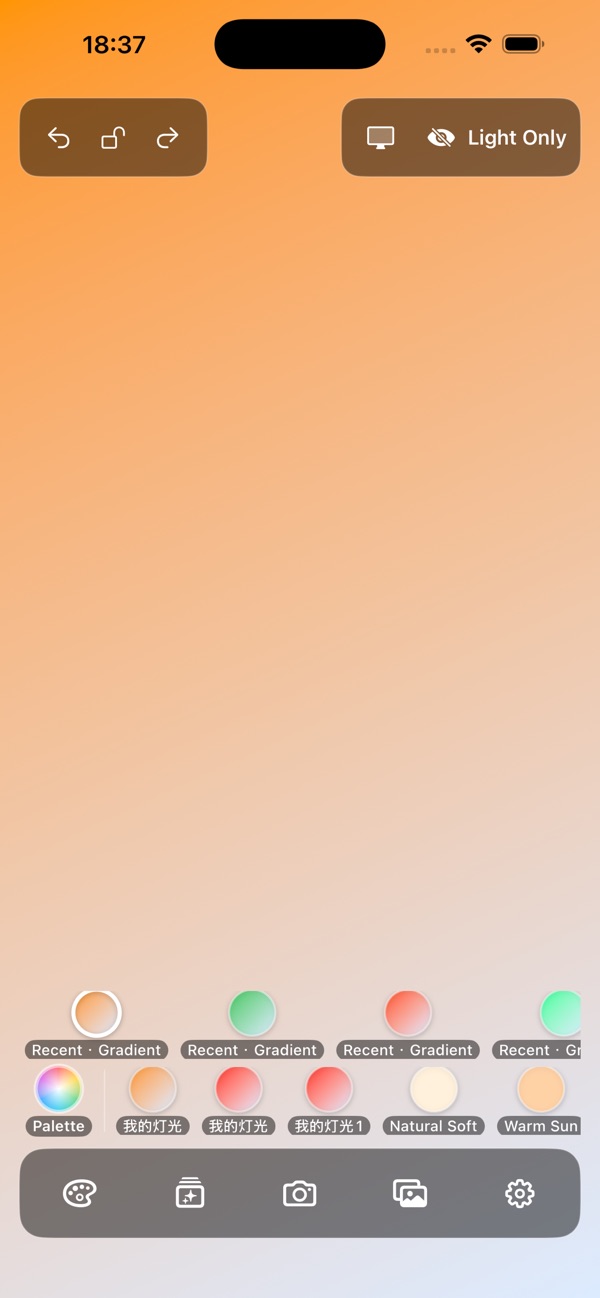
Open LumaMe's light panel and choose a preset such as Natural Soft or Warm Sun. These are starting looks, not a guarantee of the same lighting on every device. Swipe left or right on the light to move through presets.
Adjust brightness for the scene
Swipe up or down on the light surface to change screen brightness. Adjust it while looking at your camera preview, rather than assuming the brightest setting is best. Color controls let you refine the look if needed.
Place the light for the shot
Position the screen near the subject and check the effect in your camera. A second iPhone or iPad can act as the light while another device records. Results depend on screen size, distance and the surrounding light.
Hide or lock the controls
Tap the light surface to hide or restore controls. Touch and hold the light to toggle the lock; the visible Lock Controls or Unlock Controls action is another option. Unlock before trying to change a locked lighting setup.
Optionally capture with the built-in camera
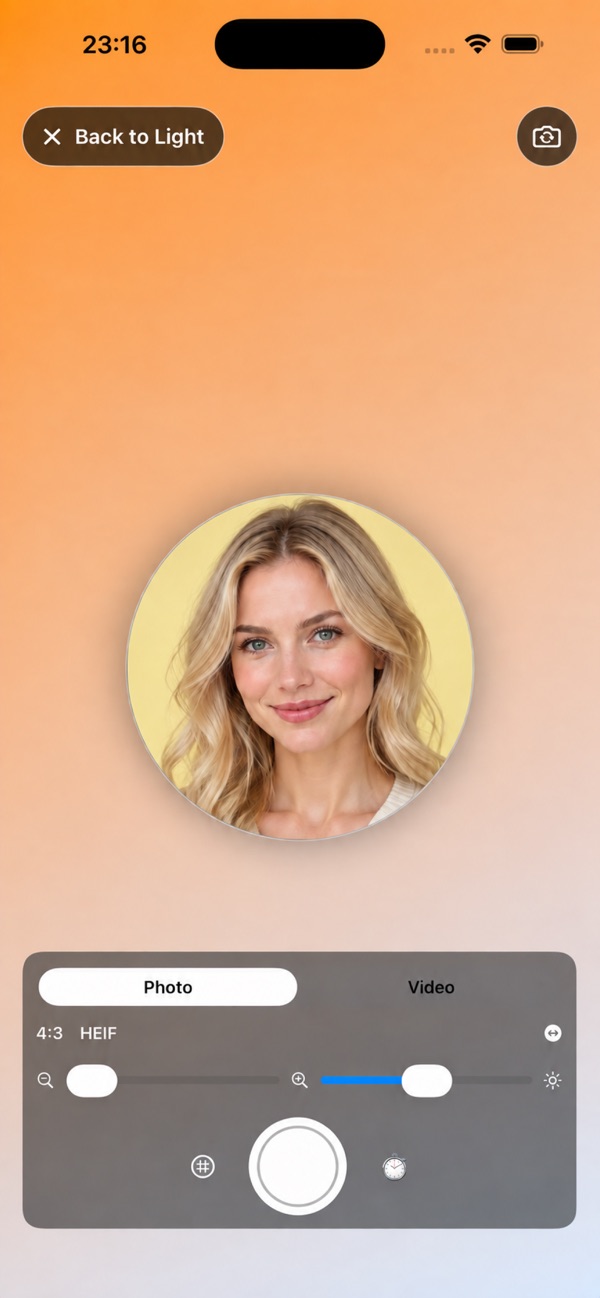
Choose Camera if you want to capture in LumaMe. Camera access is requested when you open this feature; video with sound also needs microphone access. Choose Photo or Video, compose the shot, then capture and review it in the local library. Copy to Photos only when you choose that destination.
What the controls look like
If the result is not what you expected
Swipes do not change the light
Check whether the controls are locked, then unlock before adjusting brightness or switching presets.
System brightness changed
The light panel temporarily controls screen brightness. The app restores the previous brightness when you leave the panel or auto-off runs.
The result differs from the screenshot
Display characteristics and ambient light affect the result. Color temperature is simulated by the screen, not a physical lamp specification.
Steps refer to the current iPhone workflow. Images are existing official App Store previews; exact layouts and available options can vary by app version, device and model. See the app's current purchase screen for free allowances and Pro access.