Before you start
- An iPhone with SilenceCut and a compatible video in Photos or Files.
- A short representative clip is a useful starting point for tuning the edit.
- Free export allowances or Pro access may affect how many versions you can export.
Import a video from Photos or Files
In SilenceCut's Files view, open Select Videos and choose Photo Library or Browse Files. Select your recording, wait for it to finish importing, then open the project. Keep the original recording while you check the edit.
Set the export basics
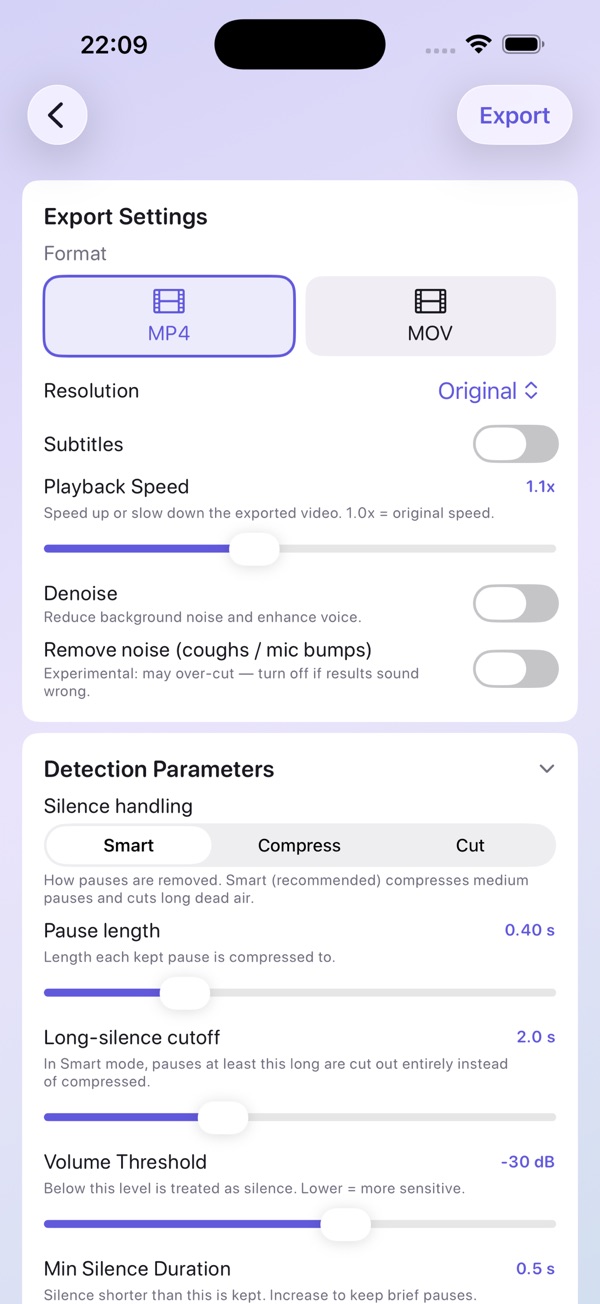
In Export Settings, choose a video format such as MP4 and an appropriate resolution. Start with Playback Speed at 1.0x if you want to evaluate silence handling without also changing speaking speed. Leave Subtitles off if you do not need captions for this pass.
Choose how the pauses are handled
Expand Detection Parameters. Smart compresses medium pauses and cuts long dead air; Compress shortens pauses to a target length; Cut removes detected silence. Choose the behavior that fits your recording rather than expecting every pause to disappear in Smart mode.
Tune the detection controls
Volume Threshold separates low-level sound from speech. Min Silence Duration keeps pauses shorter than your chosen duration. Padding retains a little time around speech so cuts are less abrupt. Start with the app's settings, then change one control at a time if the result needs adjustment.
Export, review, then save
Choose Export and let the processing finish. Detection runs during this stage; there is no separate Detect button to tap first. Play the resulting preview and listen around cuts. If needed, return to the settings for another pass. Use Save to Photos or Share once you are happy with the result.
What the controls look like
If the result is not what you expected
Words sound clipped
Keep more padding and revisit the threshold so quieter speech is retained. Listen to the result before sharing.
Short pauses are still present
Check Min Silence Duration and the chosen handling mode. Smart and Compress can retain shortened pauses by design.
The app asks about a speech model
Captions and other model-based features need their model files. A silence-removal-only pass does not need you to turn captions on.
Steps refer to the current iPhone workflow. Images are existing official App Store previews; exact layouts and available options can vary by app version, device and model. See the app's current purchase screen for free allowances and Pro access.