Before you start
- An iPhone with SilenceCut and a recording containing clear speech.
- A speech model that supports the recording's source language. Download or prepare its files while connected if needed.
- The names below follow the English iPhone controls; availability depends on the version, device and selected model.
Open the recording and enable captions
Import and open a video in SilenceCut. In Export Settings, turn on Subtitles and choose Burn In, SRT File, or both, depending on whether you want text in the video picture, a separate subtitle file, or both.
Choose the spoken source language
Open Source Language. Use Auto for detection, or select the language actually spoken in the recording. Choosing a source language gives recognition a language hint; it does not translate the recording.
Keep Original Language and prepare a model
Under Subtitle Language, choose Original Language when you want the text to match the spoken language. English translation is a different option. Select a model that supports the source language, and download or prepare it if the app indicates it is not ready.
Enter the proofreading flow
Enable Edit captions manually, then choose Next: Edit Captions. On first opening, the editor prepares the cut and generates captions. Wait for that preparation rather than expecting the export-settings screen to contain a completed transcript.
Review the words and cue timing
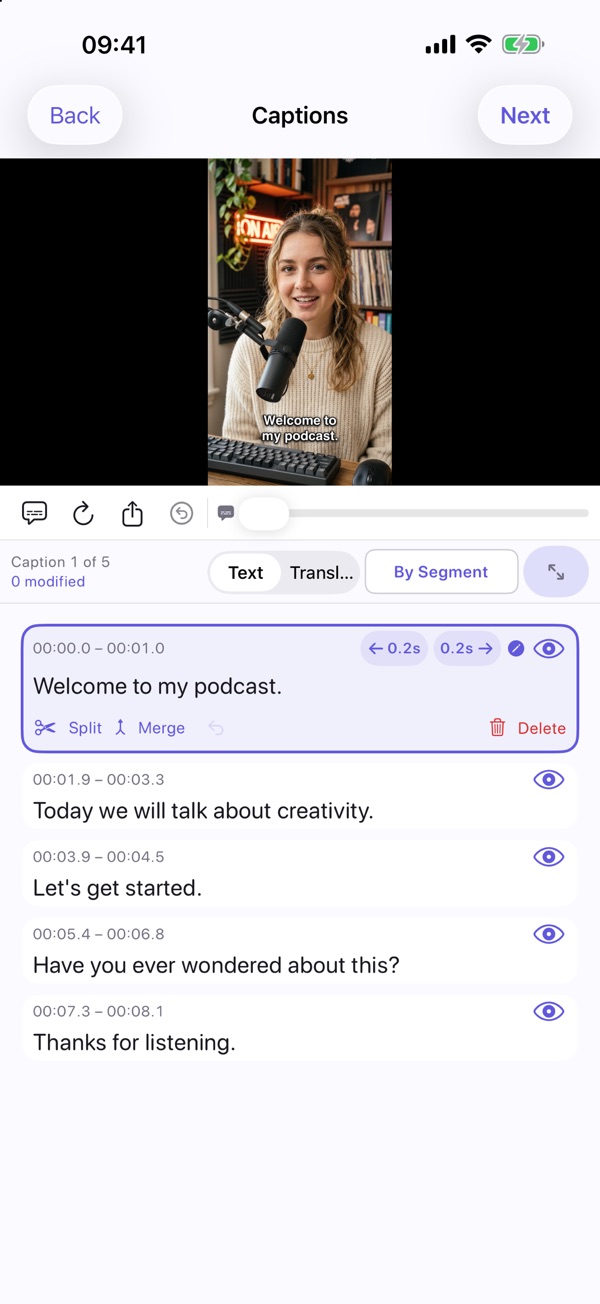
Use the Text view to inspect each cue. Check names, numbers and punctuation, replay the matching section, and correct the text or timing. Split or merge cues where needed. Recognition can make mistakes, so do not skip this review.
Continue to export the reviewed result
Choose Next after proofreading to continue the export. Burned-in captions become part of the video picture; SRT remains a separate timed-text file. Use the available sharing or Files destination for subtitle files rather than expecting them in Photos. The editor also offers SRT or TXT text export.
What the controls look like
If the result is not what you expected
The language was detected incorrectly
Choose the actual source language explicitly and retry recognition with a supporting model. Very short or noisy clips can be harder to recognize.
The text appears in English instead
Check Subtitle Language. Use Original Language for transcription in the spoken language; translation is an independent choice.
You need to work offline
Prepare the chosen model files first. Offline recognition depends on model readiness; downloads and optional online app services need a connection.
Steps refer to the current iPhone workflow. Images are existing official App Store previews; exact layouts and available options can vary by app version, device and model. See the app's current purchase screen for free allowances and Pro access.